
Signavique
Outlook email signature
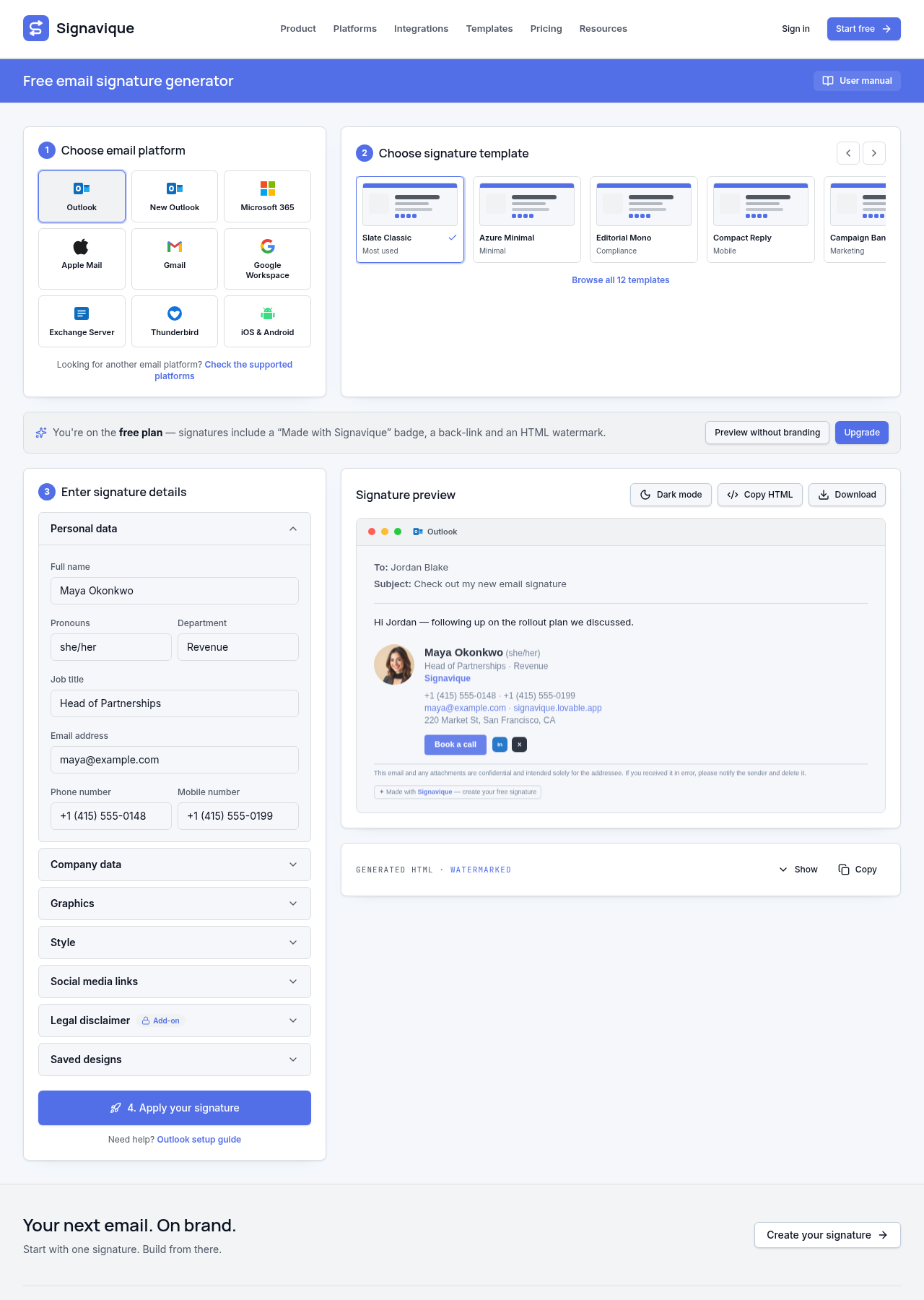
Build an Outlook signature that represents your business. Choose a layout, add your contact details and check the preview before installing it in your Outlook settings.
Client-side installation. Mail-server stamping is not currently available.
Choose an Outlook-friendly layout
Use a compact design with a readable name, role, company and useful contact links. Signavique exports table-based HTML rather than a web-page layout. Keep image sizes modest, avoid relying on background images and test your chosen layout in the Outlook version your recipients use.
Install in your Outlook client
Copy the finished signature from the builder and follow the installation guide for your version of Outlook. New Outlook, Outlook on the web and classic desktop Outlook have different settings screens. Set the default signature for new messages and replies, then send a real test message.
Check the received email, not just the preview
Test links, spacing, dark backgrounds and what happens when images are blocked. Send to another Outlook client and to Gmail where possible. A browser preview is useful, but it cannot guarantee identical rendering across every mail client.
Common questions
Does this automatically update everyone’s Outlook signature?
No. Signavique prepares the design and HTML; each mail client needs installation. Automatic Outlook roaming-signature deployment is not currently offered.
Can I use my own logo image URL?
Yes. The builder accepts a hosted image URL or an upload. Use an image intended for public access in an email signature.
Discuss your signature needs
Tell us about your organisation and email platforms.